
Zero-Downtime Deployments for Node Apps With Docker Compose · Part 7 of 11 in the series
Part 7: Swapping Containers Without a Gap
Write the deploy script that closes the gap: it starts the new container beside the old one, waits until it is healthy, moves the visitors over and only then lets the old one go.
Zero-Downtime Deployments for Node Apps With Docker ComposePart 7 of 11
On this page
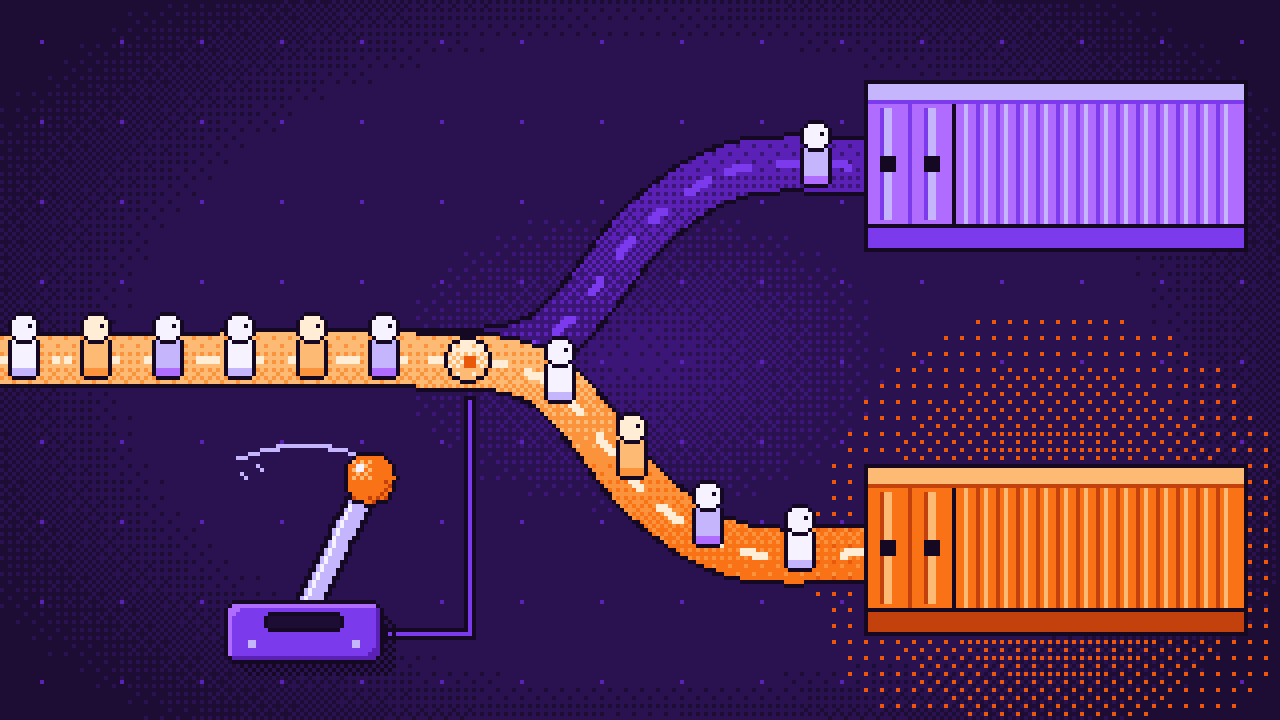
Quest objectives
- Understand why starting the new container before stopping the old one closes the gap
- Tell Caddy by name which container gets the visitors, and reload it without an interruption
- Write a deploy script of six steps and know what every line does
- Run it while requests keep coming and see that none is lost
- Know the one rule that keeps the setup working from now on
In the last part an update cost about a second of error pages. The reason was the order of things: Compose stopped the old container first and started the new one after it, and in between nobody was there to answer.
So turn the order around. Start the new container beside the old one, let it prove that it works, send the visitors to it, and only then ask the old one to finish and leave.
That is all this part builds: a script of about sixty lines that does these six things, every time a new version is waiting:
Fetch the image called
productionand check whether it is a new one.Bring the database up to date.
Start a container from the new image beside the old one.
Wait until the new container reports that it is healthy.
Send the visitors to the new container.
Let the old container finish its open requests, then remove it.
Steps 4 and 6 are why the app learned its two skills in part 2: the health check answers "are you ready?", and the graceful shutdown is the "finish and leave".
Tell Caddy by name
Until now Caddy passed every request to web, whichever container that happened to be. For a moment there will be two of them, and only one should get visitors. So from now on a small file names that one container. On your computer, change deploy/caddy/Caddyfile:
{$DOMAIN} {
	encode
	import upstream.caddy
}
import puts the contents of another file in this place. That file, upstream.caddy, holds a single line: where the requests go. The script will rewrite it with every deploy, so it lives on the server only, like .env, and not in your repository. Right now your app runs in the container guestbook-web-1, so the first version of the file is:
reverse_proxy guestbook-web-1:3000Now on the server, in the folder ~/guestbook: create that file, make the same change to the Caddyfile there, and tell Caddy to read its settings again:
$ echo "reverse_proxy guestbook-web-1:3000" > caddy/upstream.caddy$ nano caddy/Caddyfile$ docker compose exec caddy caddy reload --config /etc/caddy/Caddyfile
A reload is not a restart. Caddy keeps running, answers the requests that are open with the old settings, and uses the new ones for everything that comes after. Your site was reachable the whole time, and it still shows the same page: the file names the same container that web meant before.
The deploy script
Back on your computer, create deploy/deploy.sh:
#!/bin/sh
# Brings the newest image online without a gap: the new container starts beside the old
# one, has to prove it is healthy, gets the visitors, and only then the old one leaves.
set -eu
cd "$(dirname "$0")"
# Compose reports every step it takes. The log should hold only what matters.
export COMPOSE_PROGRESS=quiet

say() { echo "$(date +%H:%M:%S) $*"; }

# 1. Fetch the image the registry calls "production" and compare it with what is running.
docker compose pull --quiet web
image=$(grep "^IMAGE=" .env | cut -d = -f 2-):production
wanted=$(docker image inspect --format '{{.Id}}' "$image")
old=$(docker compose ps --quiet web)
running=""
if [ -n "$old" ]; then running=$(docker inspect --format '{{.Image}}' "$old"); fi

if [ "$wanted" = "$running" ]; then
  say "Nothing new"
  exit 0
fi

# 2. Bring the database up to date, with the new image's migrations.
say "New image found, updating the database"
docker compose run --rm -T web node src/migrate.js

# 3. Start a container from the new image beside the old one.
say "Starting the new container"
count=$(echo $old | wc -w)
docker compose up --detach --no-deps --no-recreate --scale web=$((count + 1)) web
new=$(docker compose ps --quiet web | grep --invert-match --fixed-strings "${old:-none}")

# 4. Wait until it reports healthy, for a minute at most.
status=starting
for attempt in $(seq 1 30); do
  status=$(docker inspect --format '{{.State.Health.Status}}' "$new")
  if [ "$status" = healthy ]; then break; fi
  sleep 2
done

if [ "$status" != healthy ]; then
  say "The new container did not get healthy, the old version keeps running. Its last words:"
  docker logs --tail 20 "$new"
  docker rm --force "$new" > /dev/null
  exit 1
fi

# 5. Send the visitors to the new container.
name=$(docker inspect --format '{{.Name}}' "$new" | cut -c 2-)
echo "reverse_proxy $name:3000" > caddy/upstream.caddy
docker compose up --detach caddy
docker compose exec -T caddy caddy reload --config /etc/caddy/Caddyfile
say "Visitors now reach $name"

# 6. Let the old container finish its open requests, then remove it.
if [ -n "$old" ]; then
  docker stop "$old" > /dev/null
  docker rm "$old" > /dev/null
fi
docker image prune --force > /dev/null

say "Version $(docker exec "$new" printenv APP_VERSION | cut -c 1-7) is live"
That is a lot of lines at once, but each one is a command you could type yourself.
The script, step by step
The first lines. set -eu makes the script careful: it stops at the first command that fails instead of carrying on, and it treats a misspelled variable as an error. The cd line moves into the folder the script lies in, so it works no matter where it is started from. COMPOSE_PROGRESS=quiet keeps Compose from reporting every little step, and say is a tiny helper that prints a line with the time in front.
1. Fetch and compare. docker compose pull asks the registry for the image called production and downloads it if it is not on the server yet. The next line reads the image's name from .env: grep finds the line that starts with IMAGE=, cut keeps what follows the equals sign. Every image has an ID, a fingerprint of its contents. wanted is the ID of the image the registry calls production, and running is the ID of the image the current container was started from. If the two are the same, there is nothing to do: the script says Nothing new and ends. This is what will happen most of the time.
2. The database. docker compose run starts a container from the new image for one job only: the migration script from part 1. --rm removes that container when it is done, and -T says that nobody sits at a terminal. If a migration fails, set -e ends the script here, before anything has changed for your visitors.
3. The new container. This is the heart of it. --scale web=…, normally 2, asks Compose for two containers of the service web instead of one, and --no-recreate tells it to leave the one that exists exactly as it is. So Compose adds one container, and because production now means the new image, that container runs the new version. --no-deps leaves the database alone. The script counts instead of writing a plain 2, so it also works on the very first run, when there is no old container yet. The last line of the step finds the newcomer: it lists the containers of web and drops the old one from the list.
4. Wait for healthy. The new container runs, but nobody visits it yet: Caddy still sends everyone to the old one. Every two seconds the script asks Docker for the container's health, which Docker knows from the HEALTHCHECK in your Dockerfile. It goes from starting to healthy as soon as /health answers with 200. If that has not happened after thirty tries, a minute, the script gives up: it prints the container's last log lines, removes it and ends with an error. The old container was never touched, so your visitors notice nothing of a version that does not work.
5. Move the visitors. The script asks Docker for the new container's name, such as guestbook-web-2 (the cut removes a slash Docker puts in front), writes it into caddy/upstream.caddy and reloads Caddy, as you just did by hand. The line before the reload makes sure Caddy is running at all, and does nothing if it is. From this moment on, every new request goes to the new version.
6. Say goodbye to the old one. docker stop sends the old container the signal SIGTERM. This is the moment the shutdown code from part 2 was written for: the old app takes no new requests, answers the ones it is still working on, closes its database connections and ends. Then the container is removed. docker image prune deletes images that no name points to any more, such as the one production meant before, so the disk does not fill up. The last line asks the new container which version it is, and prints it.
Run it
Copy the script to the server and allow it to be run:
$ scp deploy/deploy.sh deploy@guestbook.example.com:guestbook/$ ssh deploy@guestbook.example.com chmod +x guestbook/deploy.sh
Now give it something to deploy. In src/page.js, change the button's text from Sign the guestbook to Sign it, and push. git add . takes the new files in deploy/ along, so your repository holds the script too:
$ git add .$ git commit --message "A shorter button"$ git push
Wait until the pipeline has built the image. Then start the knocking from the last part in one terminal on your computer, and leave it running:
$ ./knock.sh https://guestbook.example.com/.............................................................................................................................................
While it knocks, run the script on the server, in ~/guestbook:
$ ./deploy.sh10:06:10 New image found, updating the databaseDatabase is up to date10:06:12 Starting the new container{"level":"info","ts":1794906374.6582832,"msg":"using config from file","file":"/etc/caddy/Caddyfile"}{"level":"info","ts":1794906374.6588163,"msg":"adapted config to JSON","adapter":"caddyfile"}10:06:14 Visitors now reach guestbook-web-210:06:14 Version c41f0a9 is live$ ./deploy.sh10:06:15 Nothing new
Four seconds from "new image found" to "is live", and in the other terminal nothing but dots. Not one 502. Reload the page in your browser: the button is shorter and the footer says c41f0a9.
The two lines in curly braces are Caddy confirming that it read its new settings. The second run of the script shows the usual case: the image has not changed, so it says Nothing new and is done within a second.
Look at what the server runs now:
$ docker compose ps --format 'table {{.Name}}\t{{.Status}}'NAME STATUSguestbook-caddy-1 Up 4 minutesguestbook-db-1 Up 4 minutes (healthy)guestbook-web-2 Up 3 seconds (healthy)$ cat caddy/upstream.caddyreverse_proxy guestbook-web-2:3000
The container is called guestbook-web-2, the first one is gone, and the file names the new one. With every deploy the number counts up.
How sure is that?
Ten knocks a second are a small test. For this series the script was also run under a load test of more than a thousand requests per second, connecting the way browsers do, with HTTP/2 over HTTPS. Three deploys in a row lost 0 of about 48,000 requests, and that includes the ones that signed the guestbook while the containers were being swapped. The plain update from the last part lost 80 of about 36,000 under a comparable load.
What you have now
One command on the server brings a new version online, and no visitor sees an error page while it does. A version that does not get healthy never meets a visitor at all.
You still have to log in and type that command, though. In the next part the server learns to look for new versions itself, once a minute, and the pipeline is complete: you push, and a little later the new version is live.
Comments
The comments are GitHub Discussions: sign in with GitHub to write one.
The comments come from GitHub, through giscus. Loading them sends your IP address to giscus.app and GitHub.