
Your Portfolio With Manablox · Part 3 of 7 in the series
Part 3: Fill the Portfolio With Your Work
Upload pictures, turn the example projects into your own, edit the sections of your pages, and give the site your name and colors.

Quest objectives
- Upload pictures and give them alt texts
- Edit, delete and create projects
- Arrange the sections of a page
- Change the site name and the colors
- Receive a message through the contact form
The portfolio from the last part still shows example content. In this part you replace it with your own work. Everything happens in the admin at localhost:3000, so keep pnpm dev and pnpm dev:site running.
You need a few pictures: one cover per project, a few more for the galleries, and one of you. Screenshots of your projects work great. Landscape pictures in a 3:2 shape look best as covers. If you have none at hand, download Robin's pictures and unpack them.
Upload your pictures
Click Assets in the sidebar, then Upload files, and pick all your pictures at once.
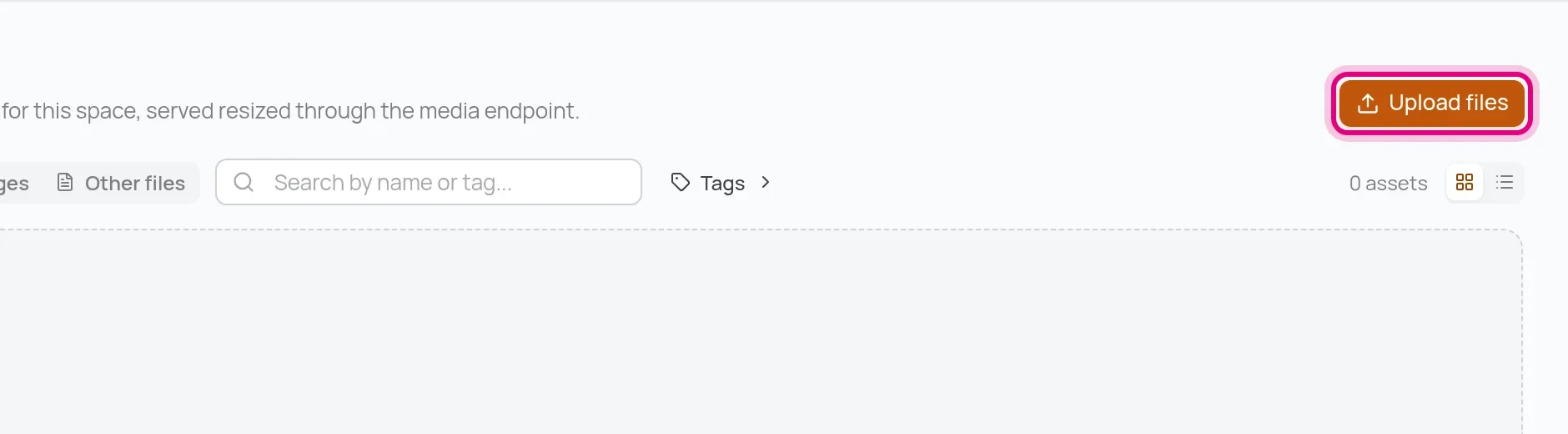
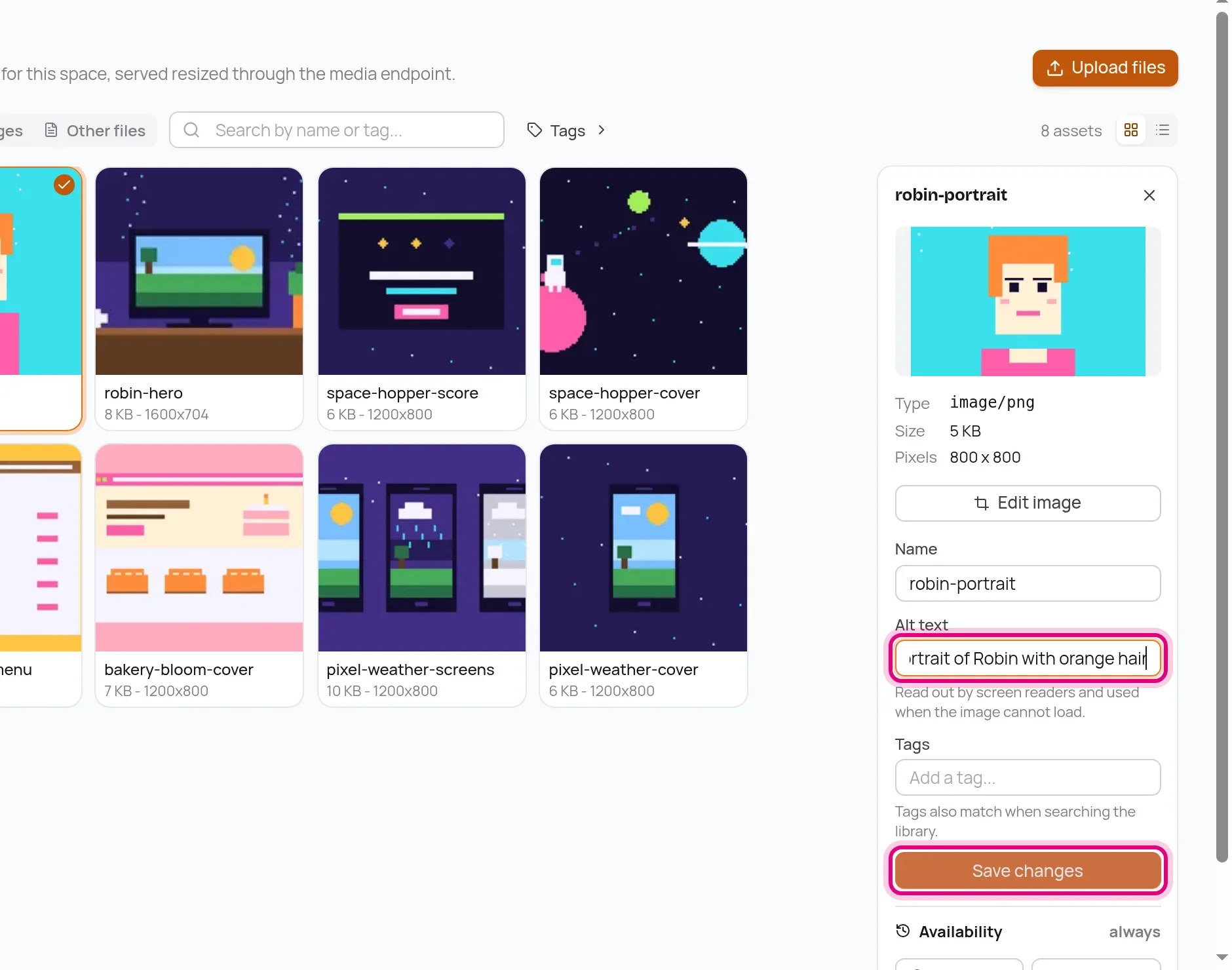
Click a picture to open its details on the right. Fill in the Alt text: one sentence that says what the picture shows. Screen readers read it to people who cannot see the picture, and search engines use it to understand it. Click Save changes, and do the same for every picture.
Edit a project
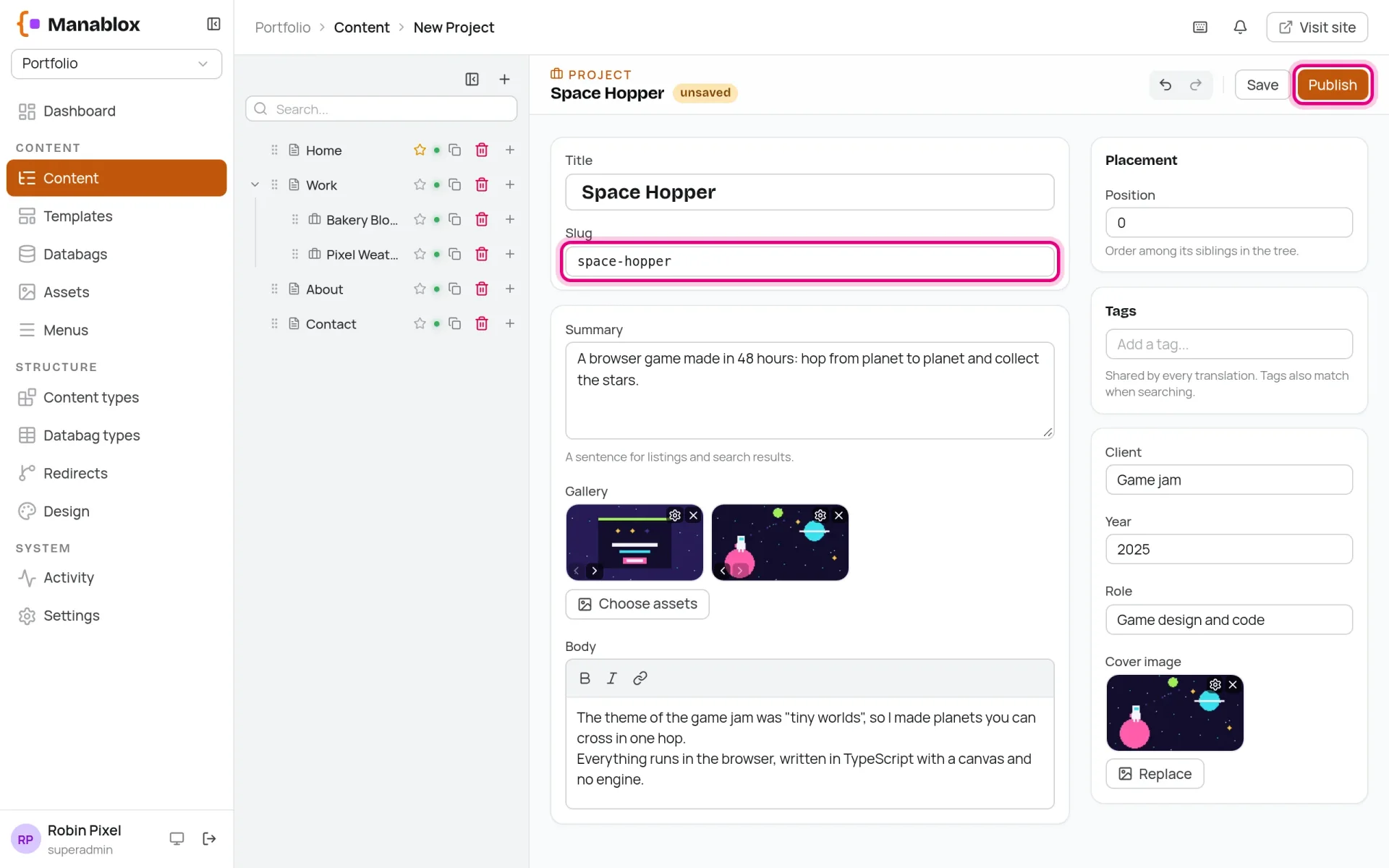
Open Content, unfold Work and click the first project, Brand refresh. The form has the fields of the Project content type:
Title: the name of the project.
Slug: the last part of its address, in lowercase letters with hyphens instead of spaces. For Bakery Bloom that is
bakery-bloom, so the page lives at/work/bakery-bloom.Summary: one or two sentences for cards and search results.
Gallery and Body: more pictures, and the story of the project.
On the right: Client, Year, Role and the Cover image.
Robin turned the three examples into these projects:
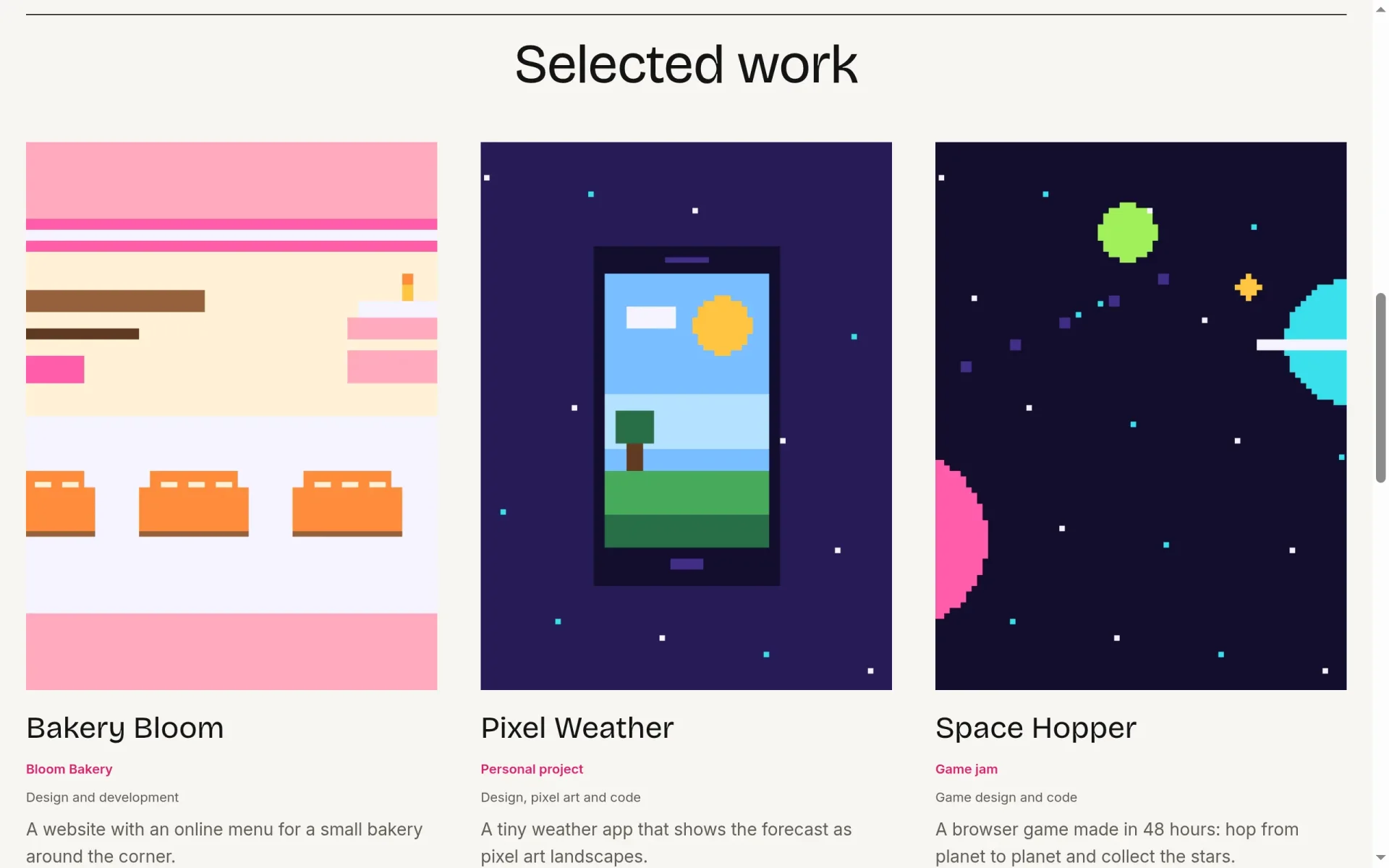
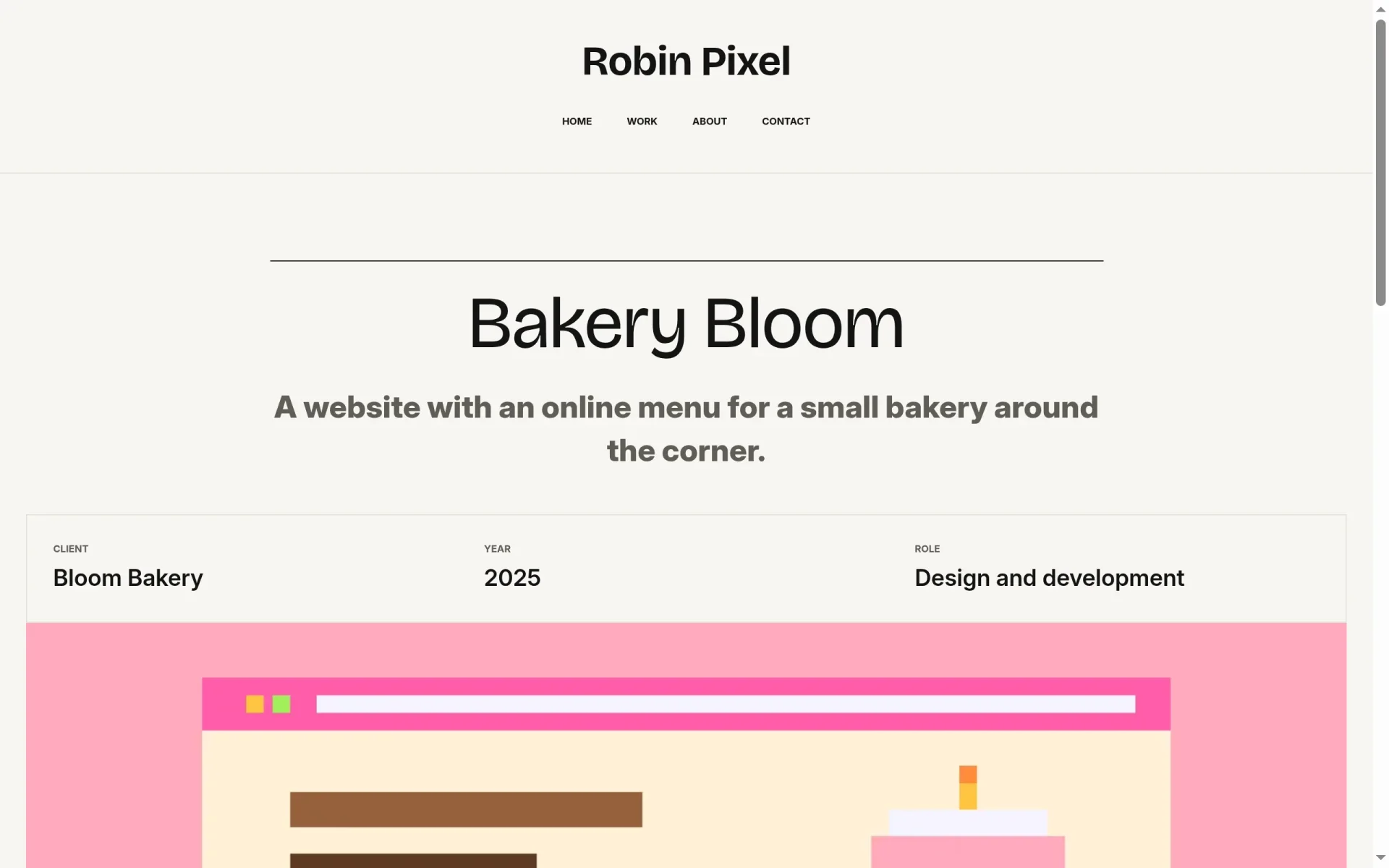
Bakery Bloom    client: Bloom Bakery       year: 2025   role: Design and development
Pixel Weather   client: Personal project   year: 2026   role: Design, pixel art and code
Space Hopper    client: Game jam           year: 2025   role: Game design and code
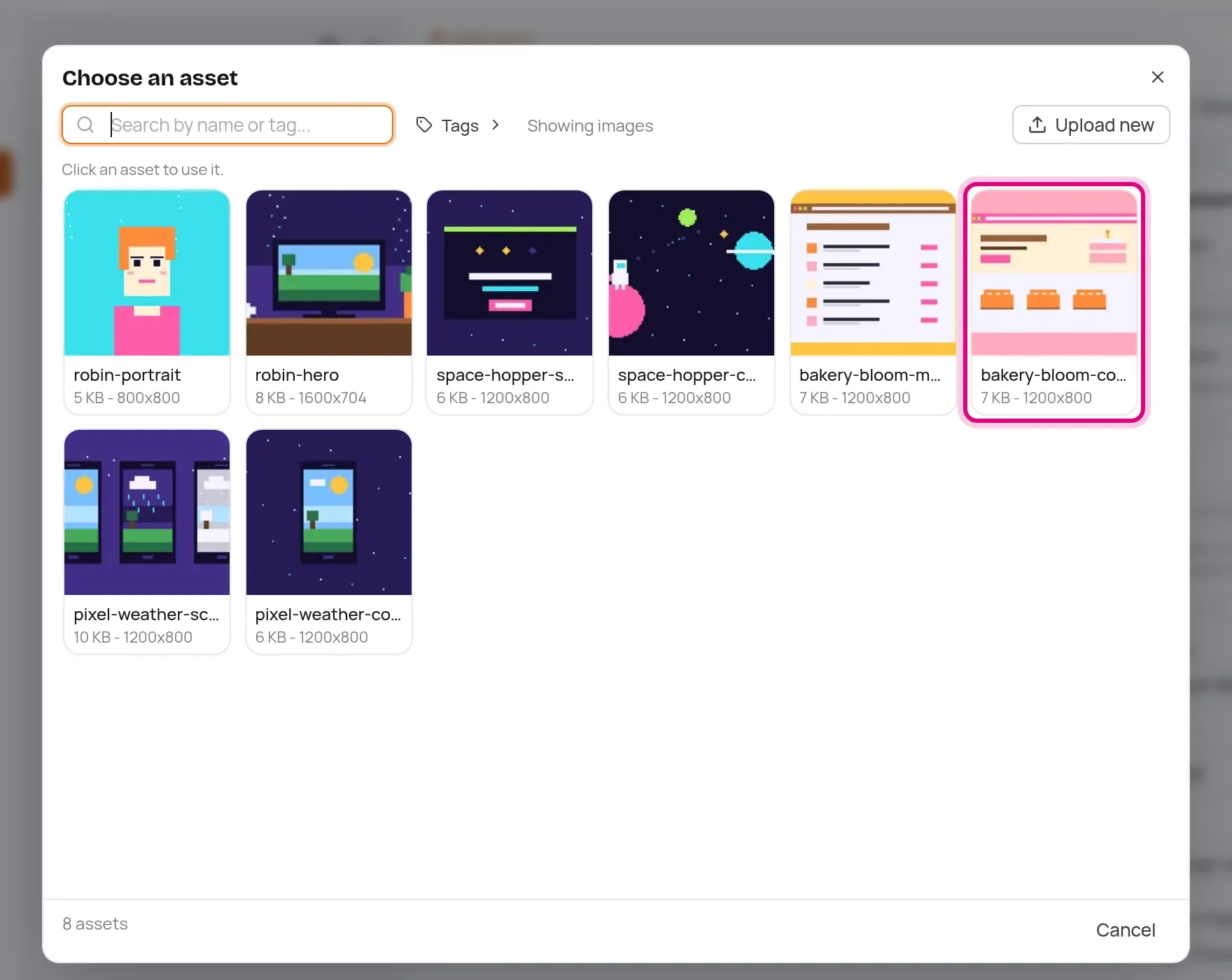
Type your own texts into the fields. For the cover, click Choose asset and pick a picture:
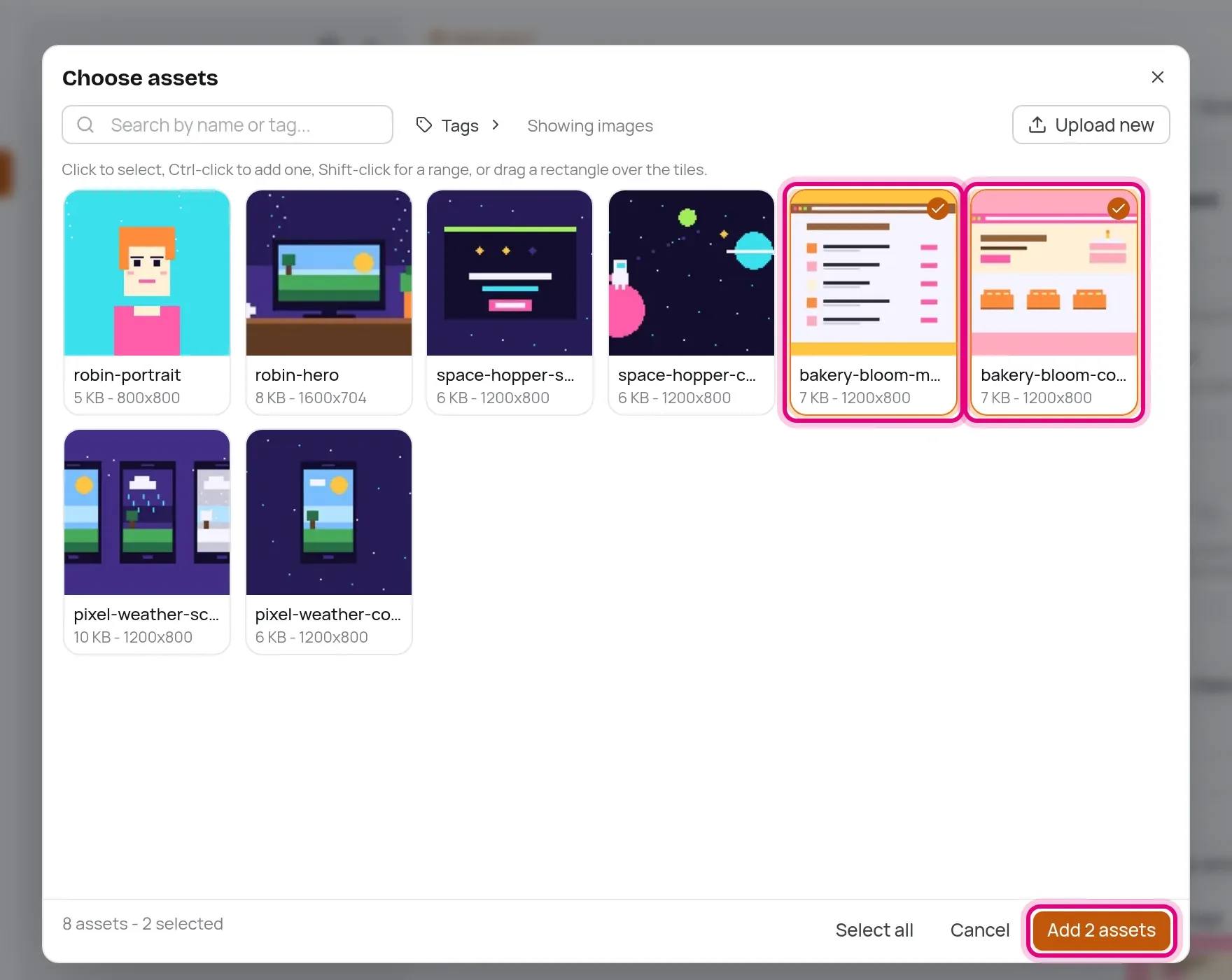
The gallery takes several pictures. Click Choose assets, click the first picture, then hold Ctrl (Cmd on a Mac) and click the others. The button at the bottom counts them.
When everything is filled in, click Publish.
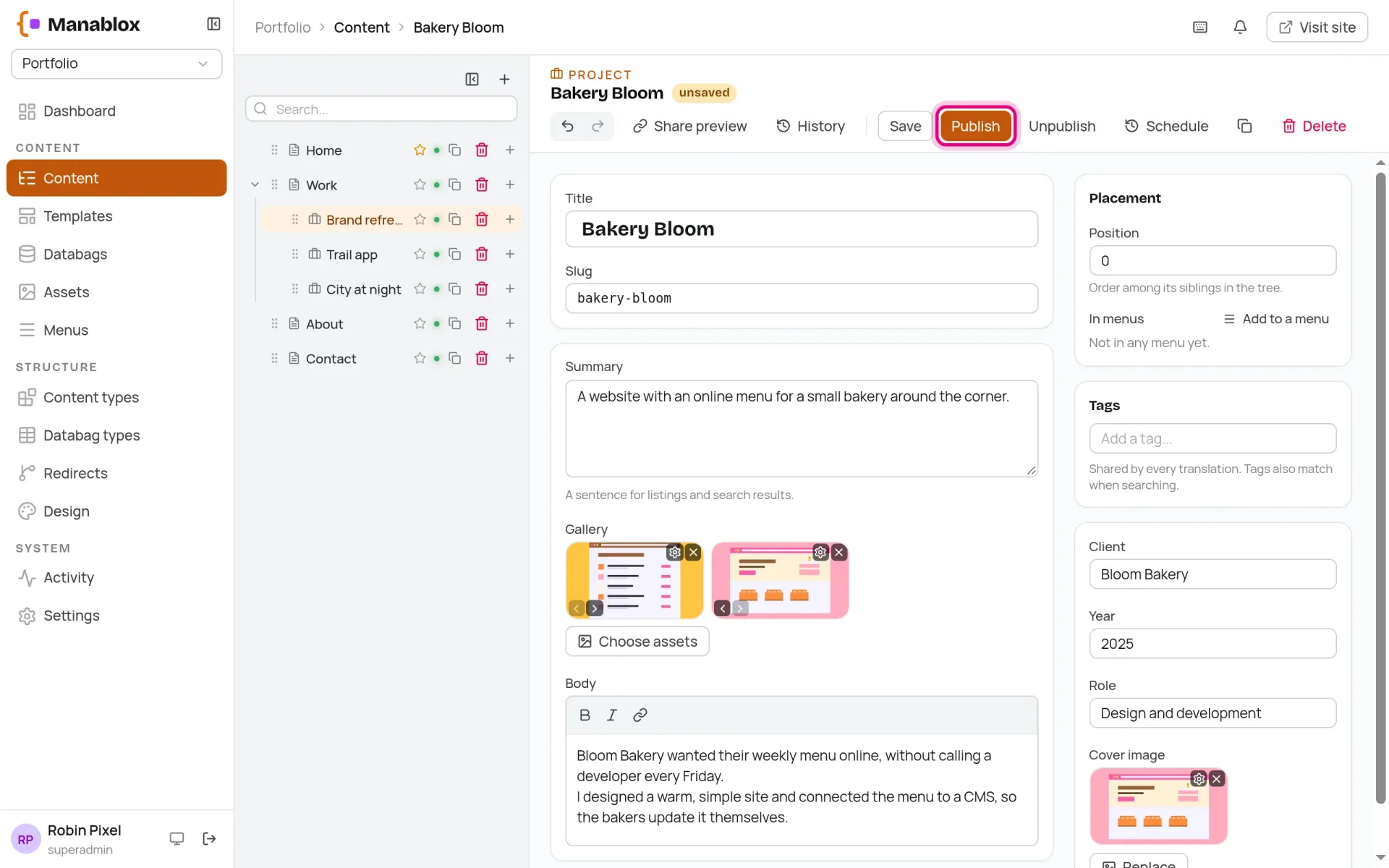
Edit the second example, Trail app, the same way. Robin made it Pixel Weather.
Delete and add projects
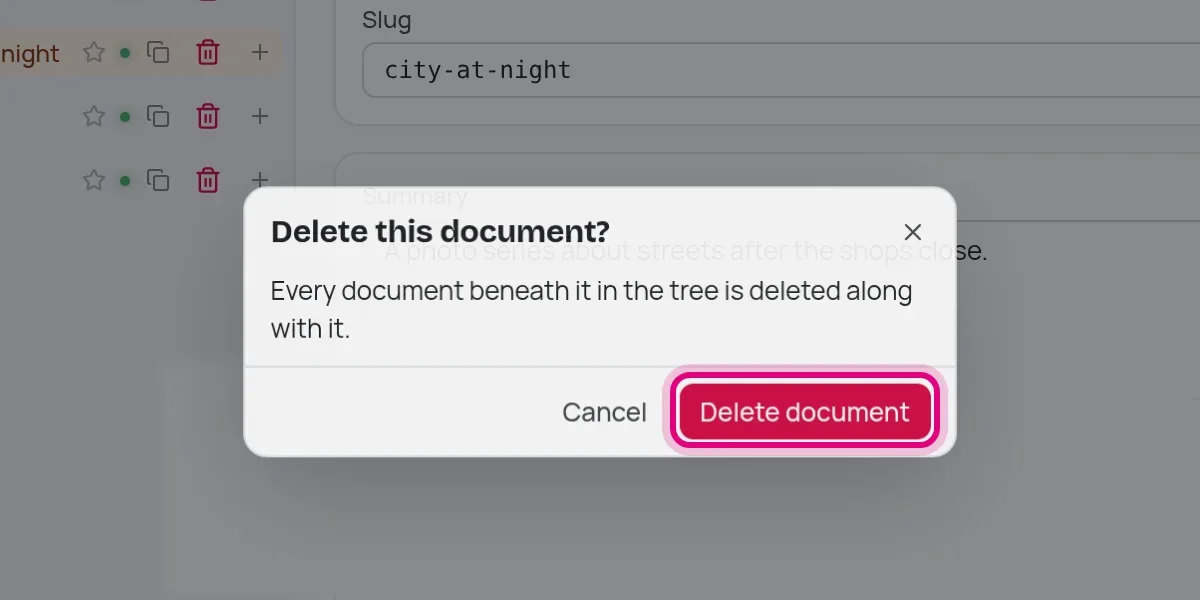
Robin has no use for the third example, City at night. Open it, click Delete at the top and confirm.
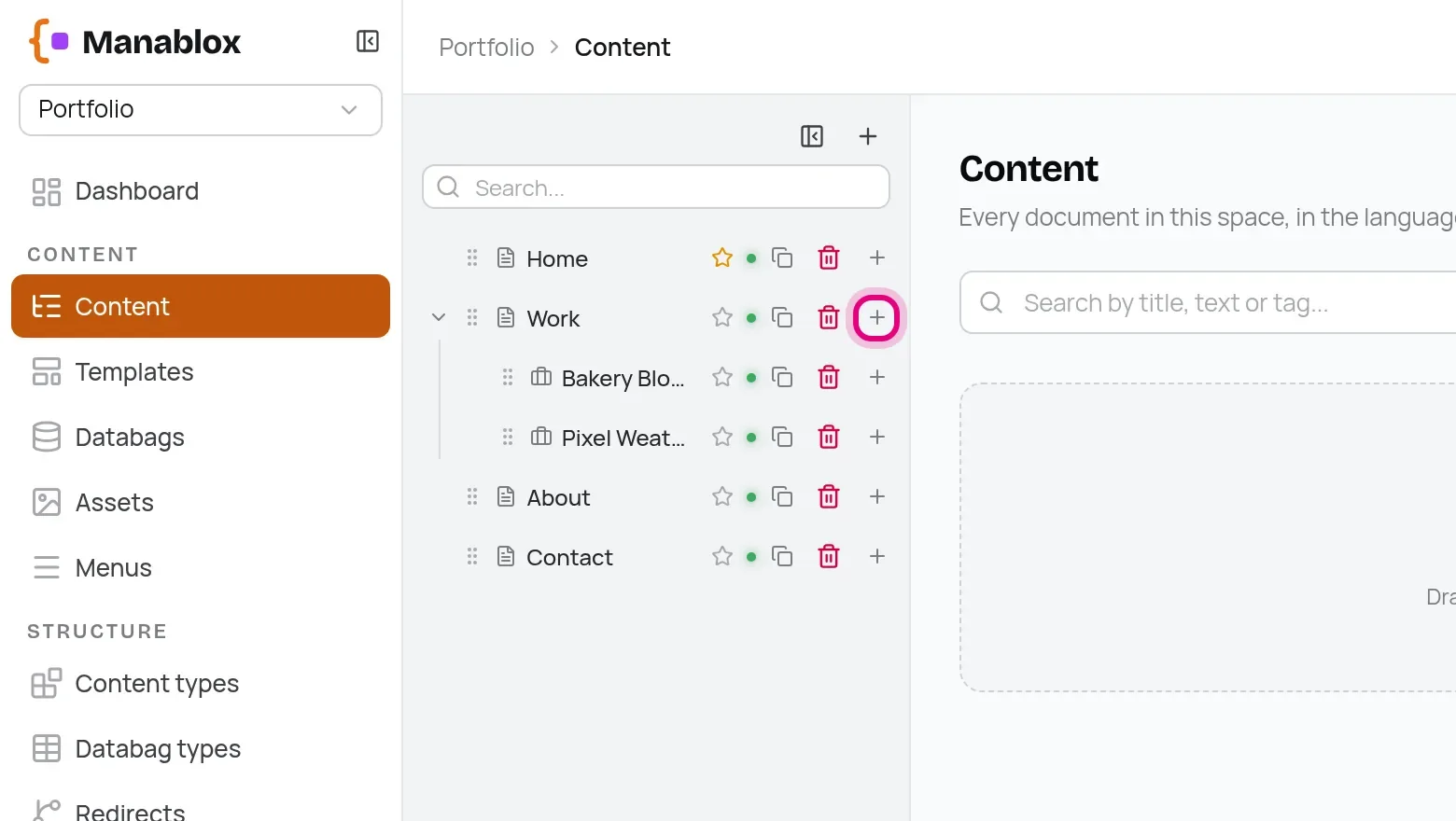
To add a new project, hover over Work in the tree and click the + at the end of the row. It adds a page underneath, so the project ends up at /work/….
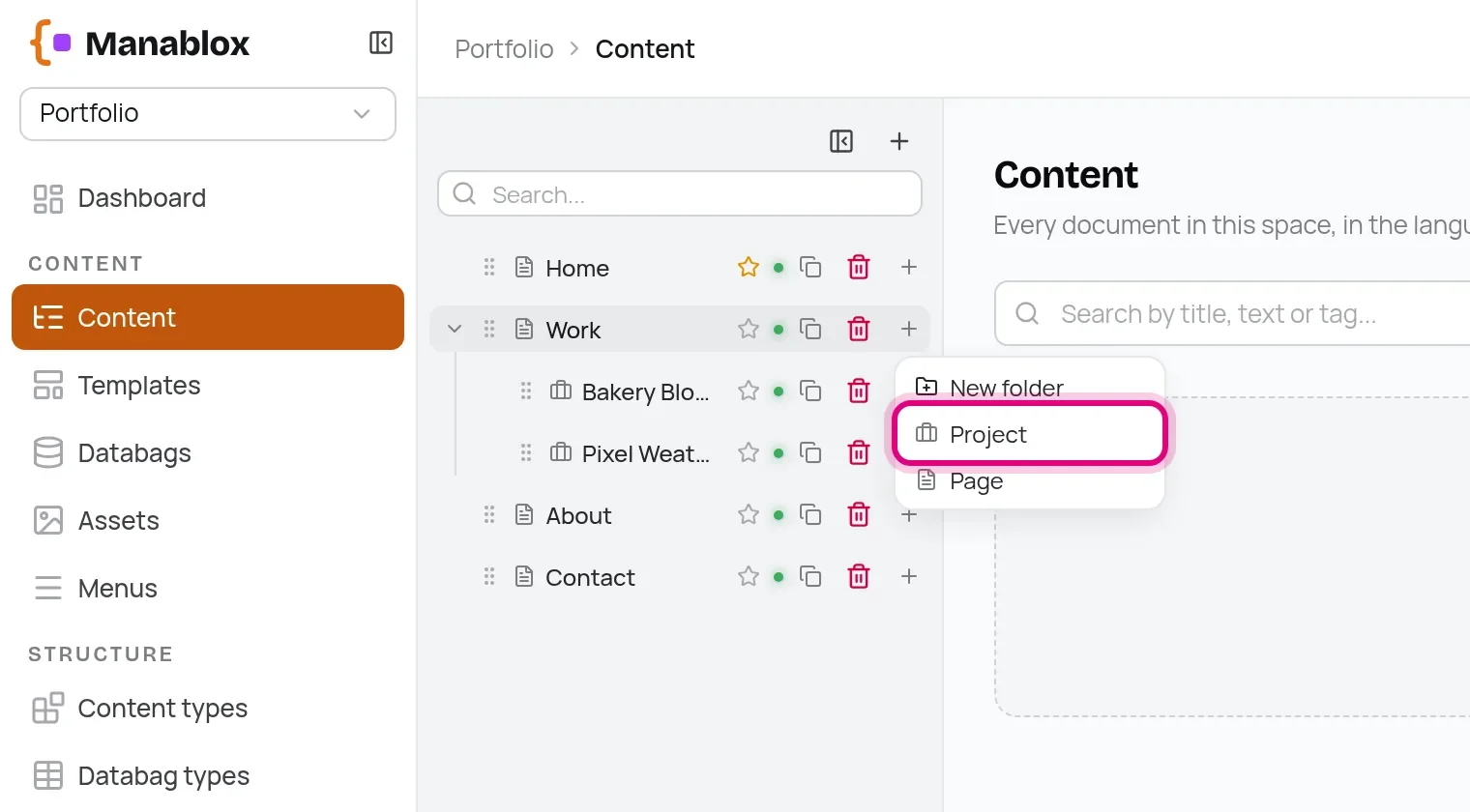
Manablox asks which type the new document has. Choose Project.
Fill in the form just like before. You don't need to type the slug: it is made from the title. Then publish.
The sections of the home page
Pages are built differently from projects: they are a stack of blocks. Open Home. Under Components you see its four blocks: a hero, a project grid, a gallery and a call to action. Click a block to open it, use the arrows to move it up or down, and Add block to add another one.
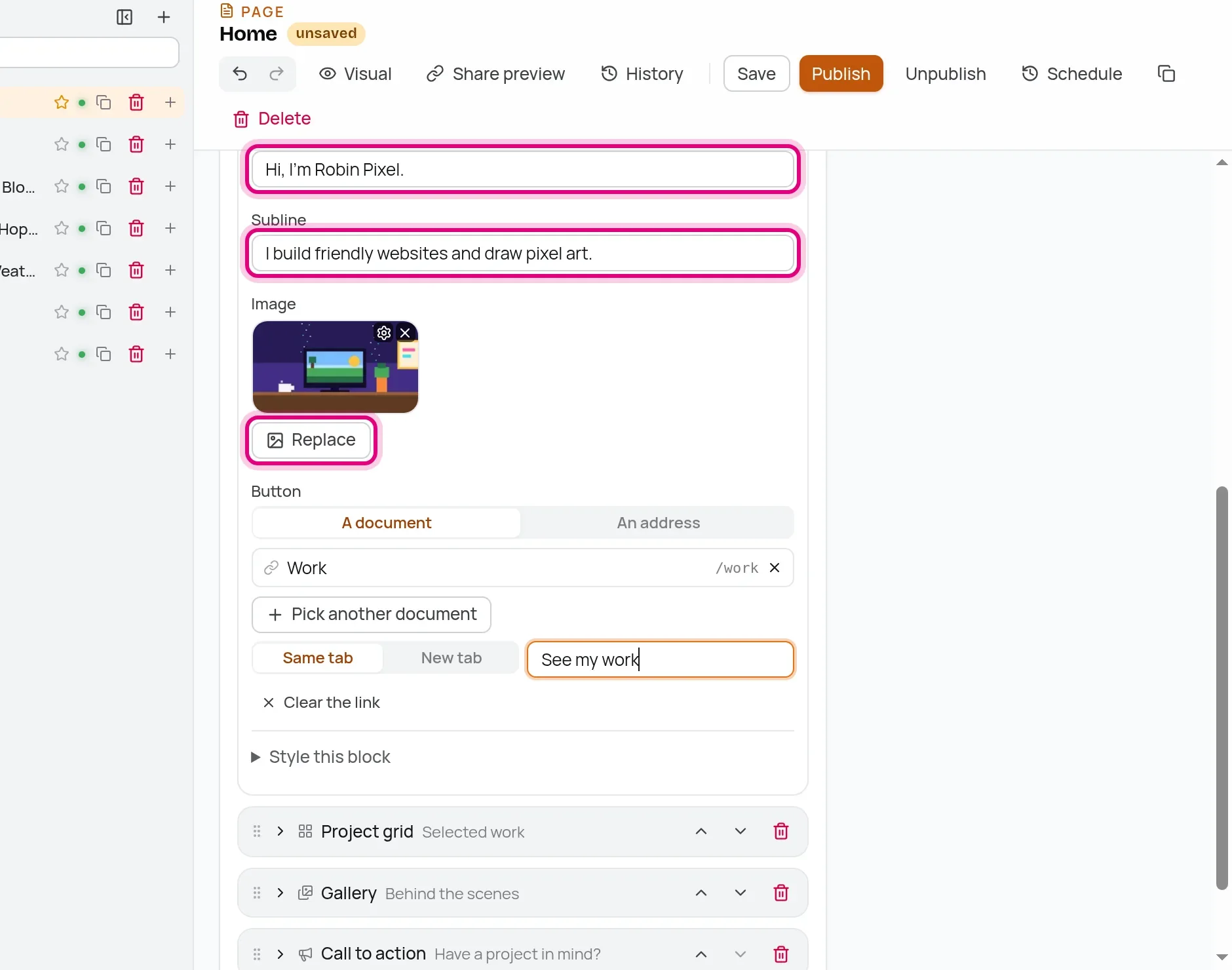
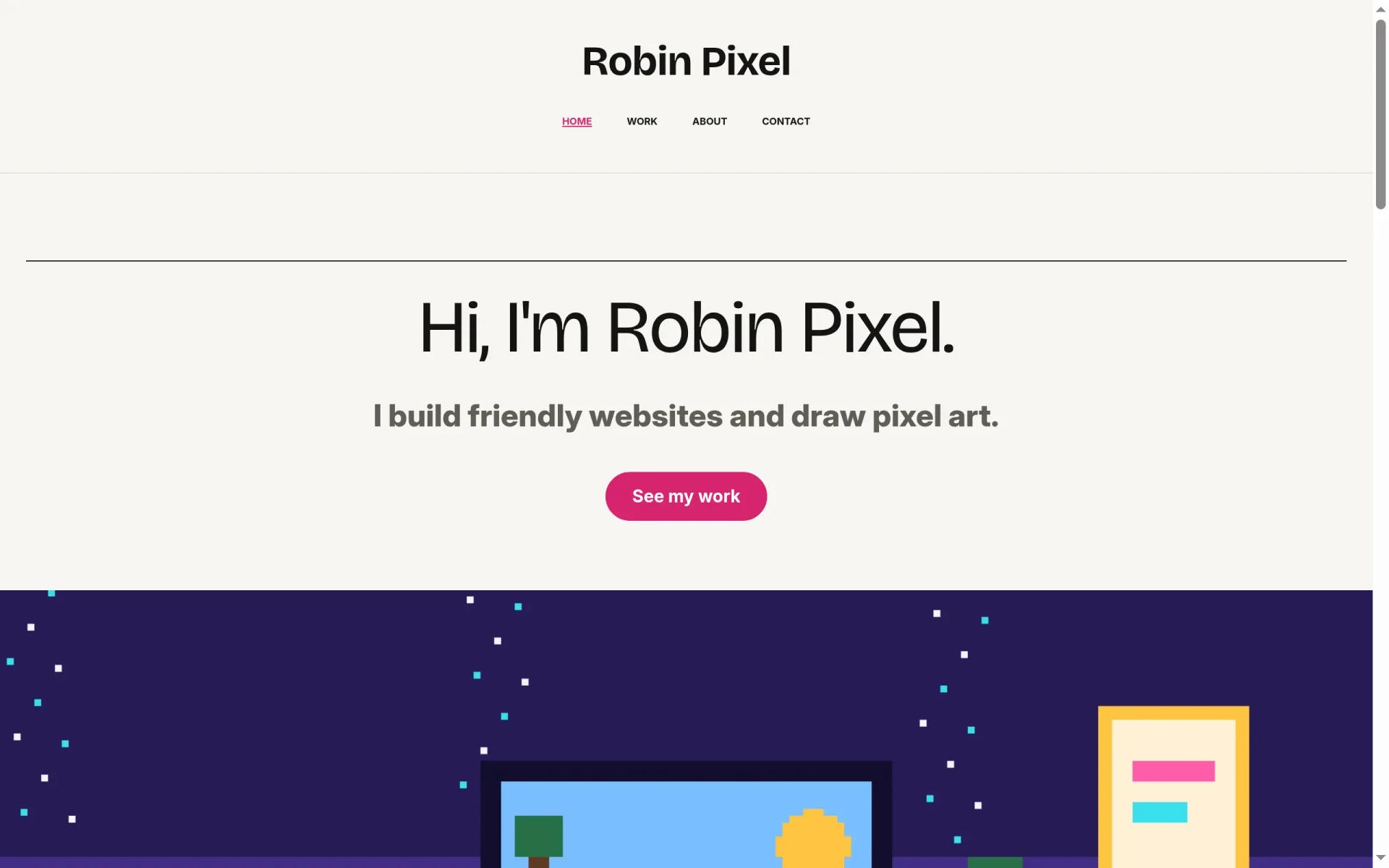
Open the Hero and give it your headline, a short subline and a picture. Its button can link to a document: pick Work and call it See my work.
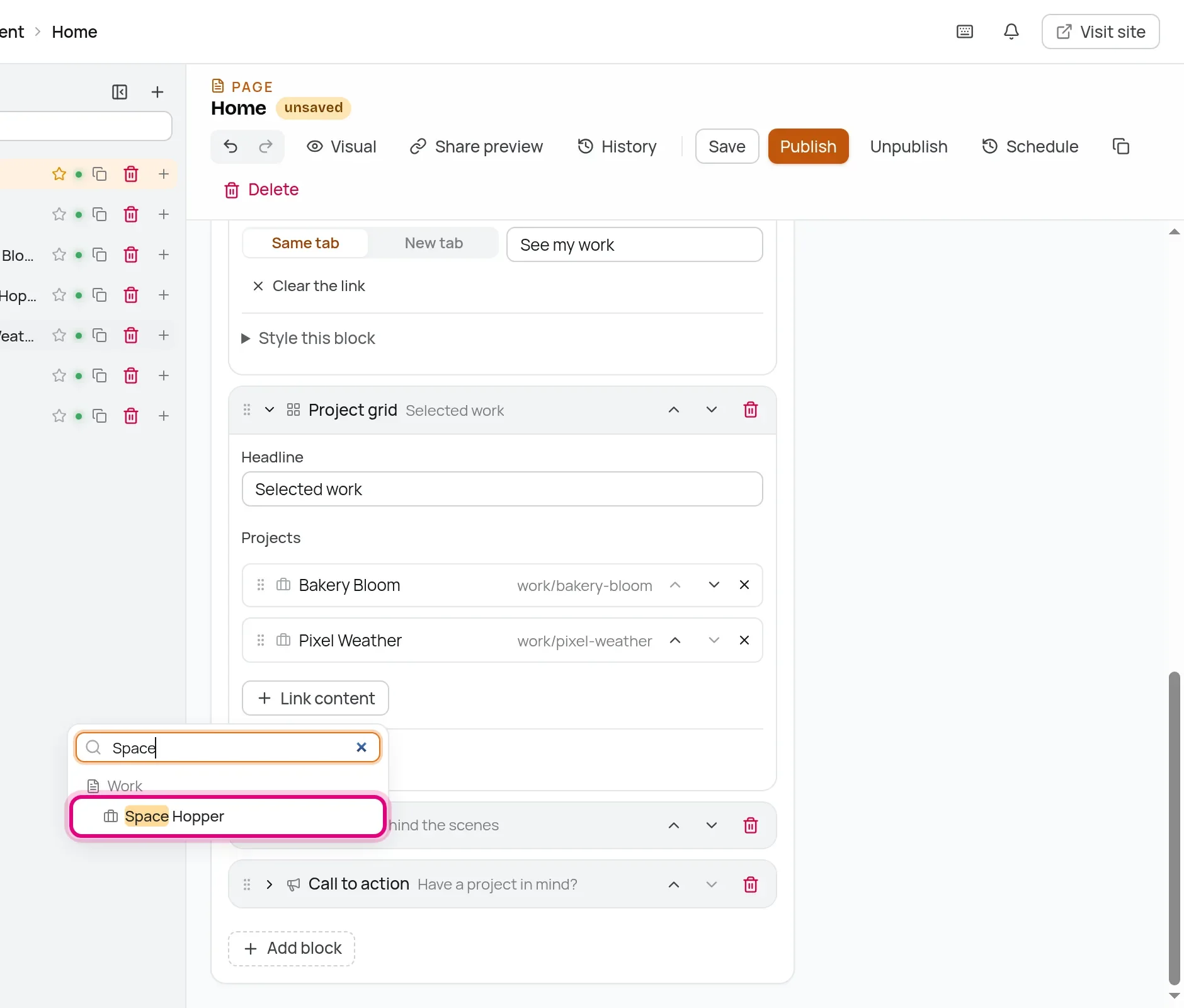
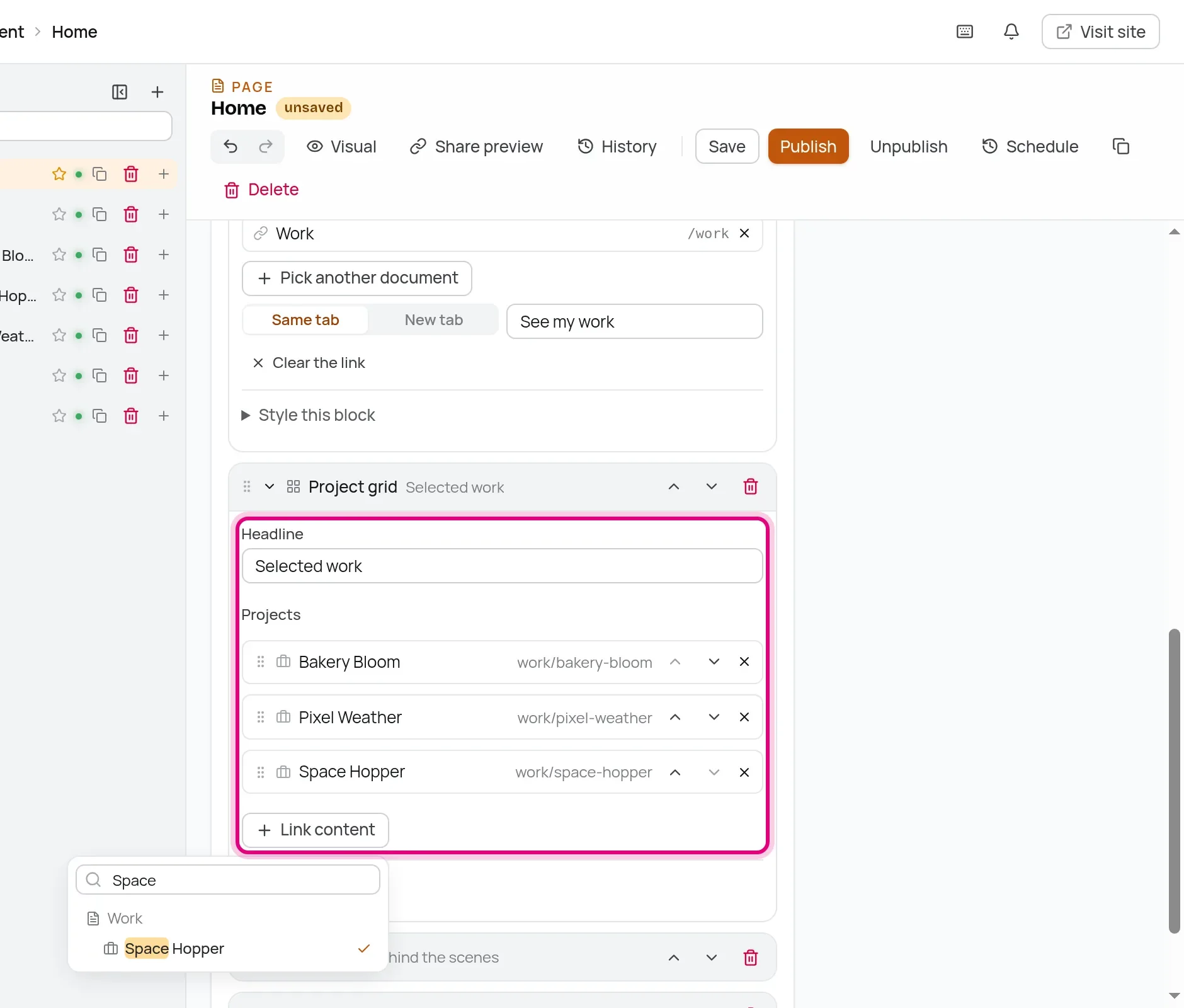
Then open the Project grid. It shows the projects you link here, in this order. The deleted project has already disappeared. Click Link content, type the first letters of your new project and pick it.
Give the Gallery block a few pictures and a headline (Robin's is Sketches and screens), and publish the page.
The About and Contact pages work the same way. On About, Robin wrote a short text about their work into the Image and text block, chose the portrait as its picture, and put a client's sentence into the Quote. On Contact, the text block got an email address, and the contact form a new headline: Send me a message.
Your name and your colors
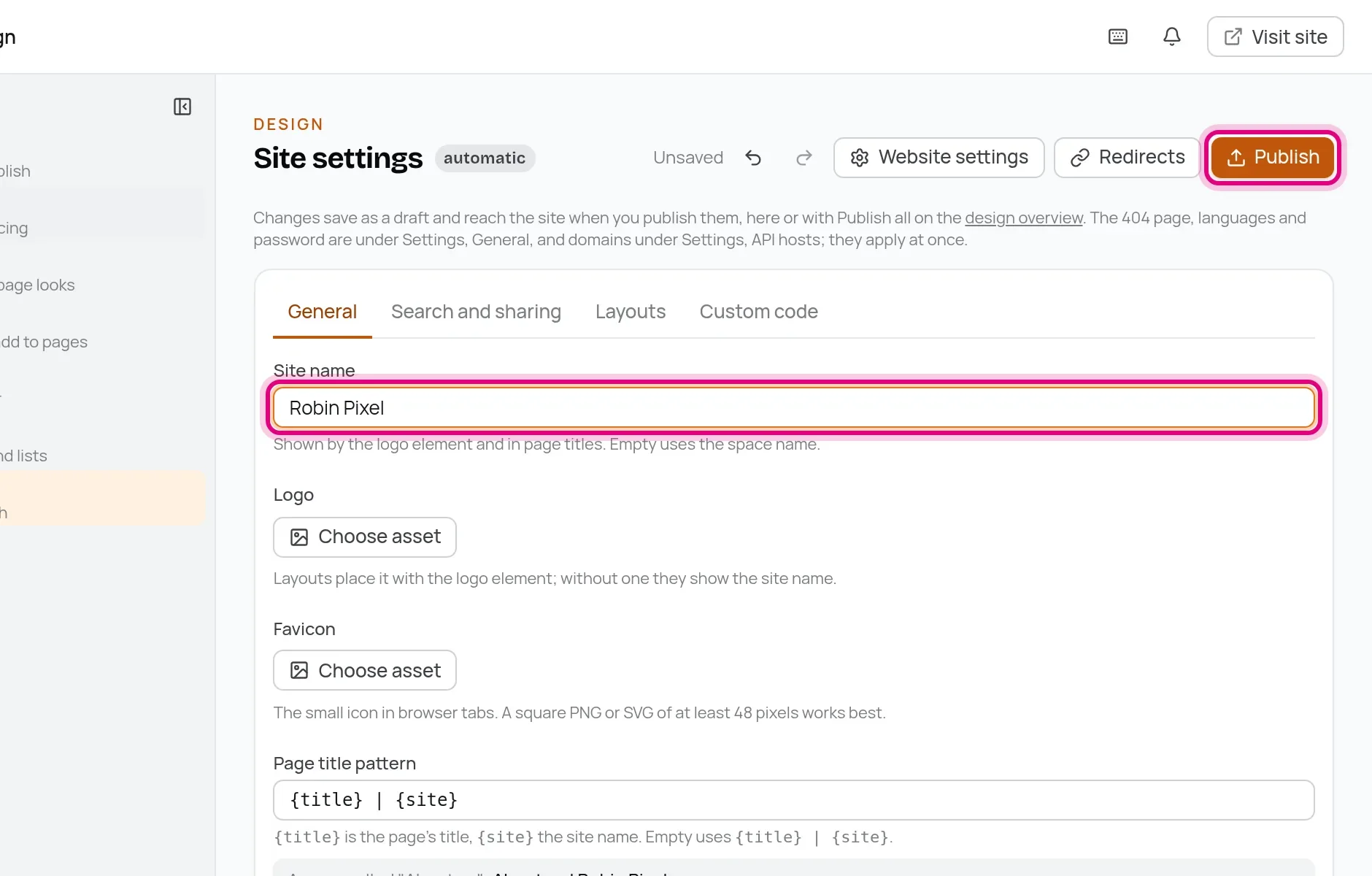
The header still says Portfolio. Open Design in the sidebar, then Site settings, change the Site name to your name and click Publish.
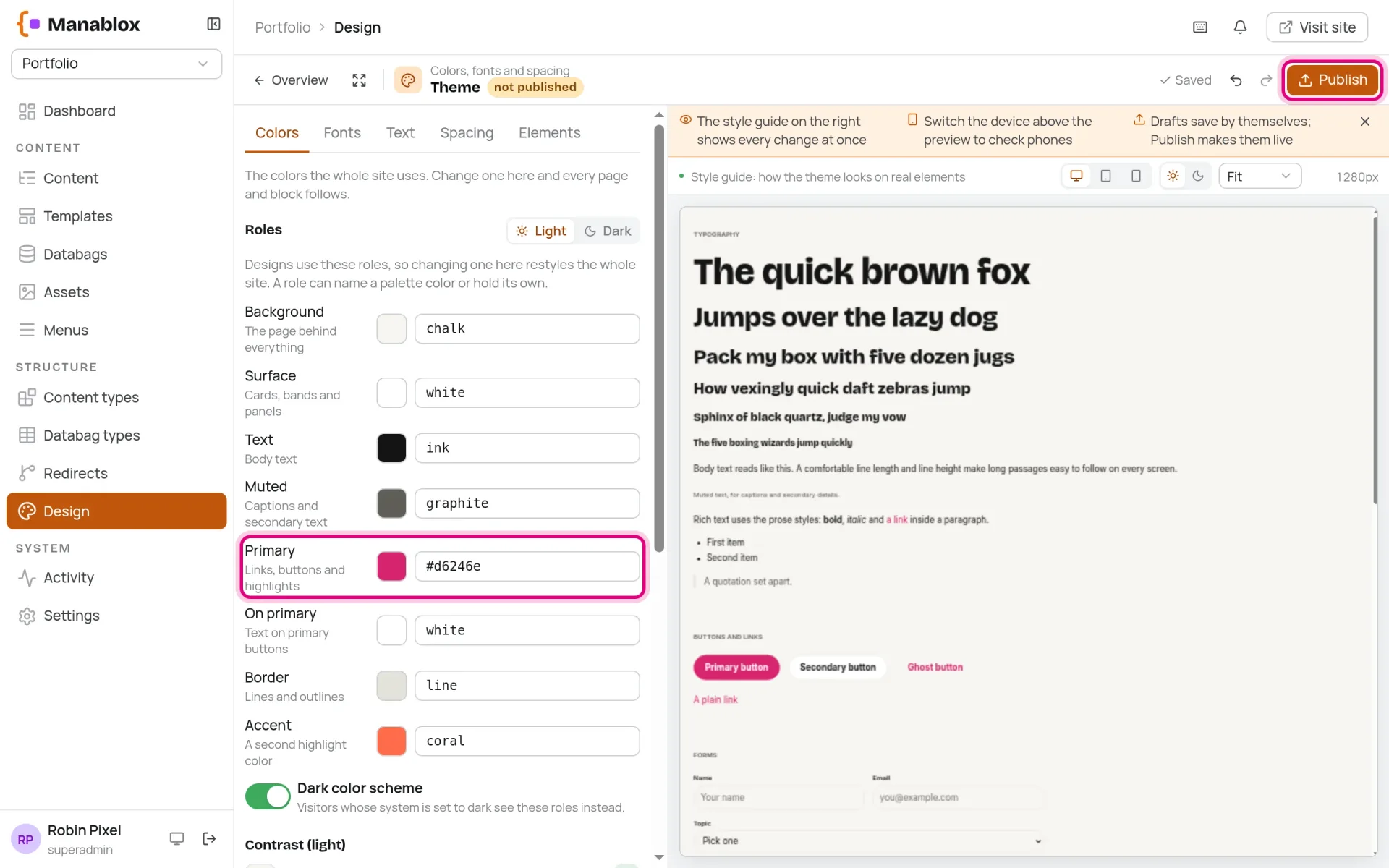
Under Design → Theme you change the colors. The Primary color is used for links, buttons and highlights. Robin made it a bright pink. The style guide on the right shows every change at once. Click Publish when you like it.
Look at the result
Reload localhost:3200. The examples are gone, and the portfolio shows your work:
Try the contact form
Open the contact page, fill in the form and click Send.
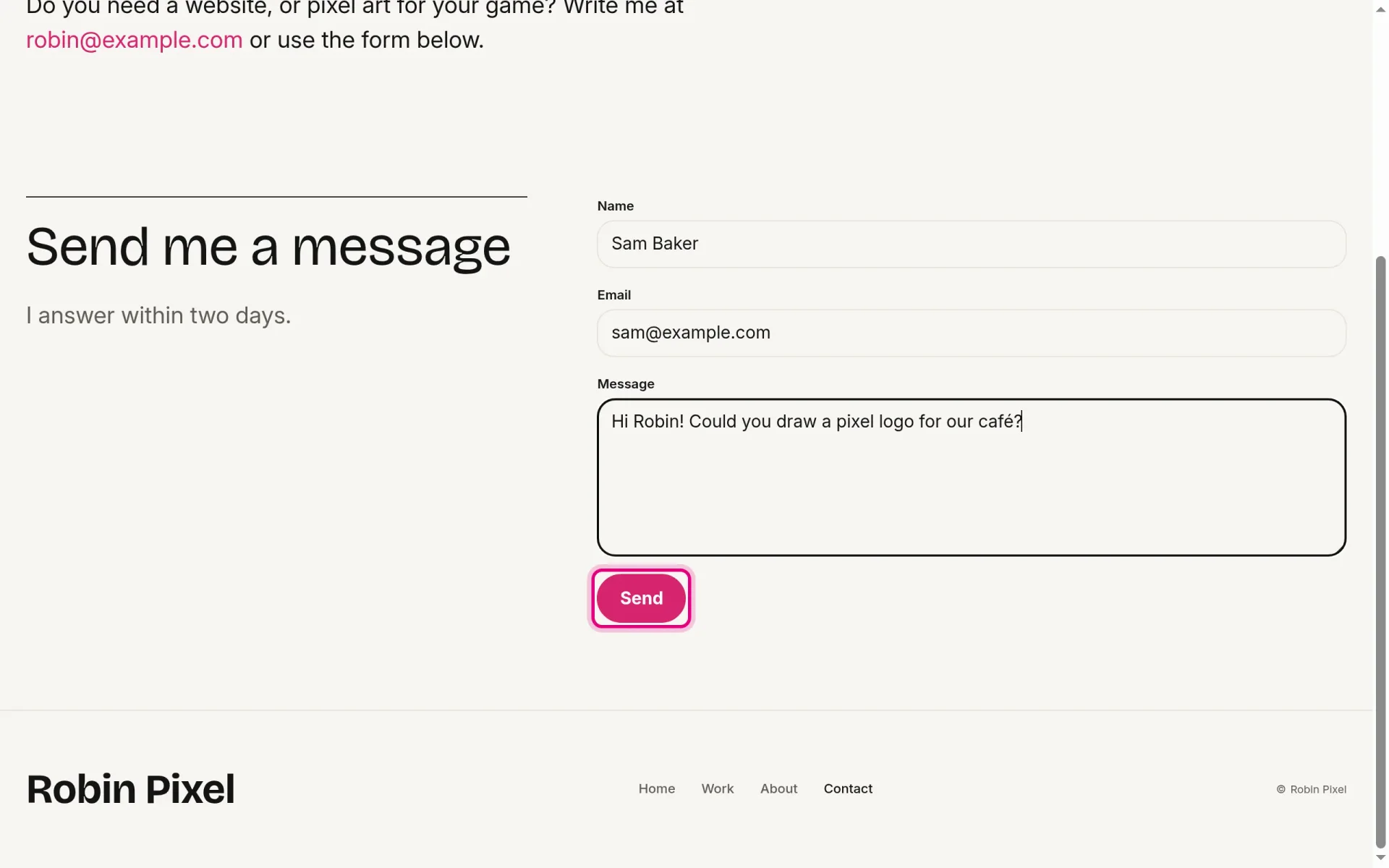
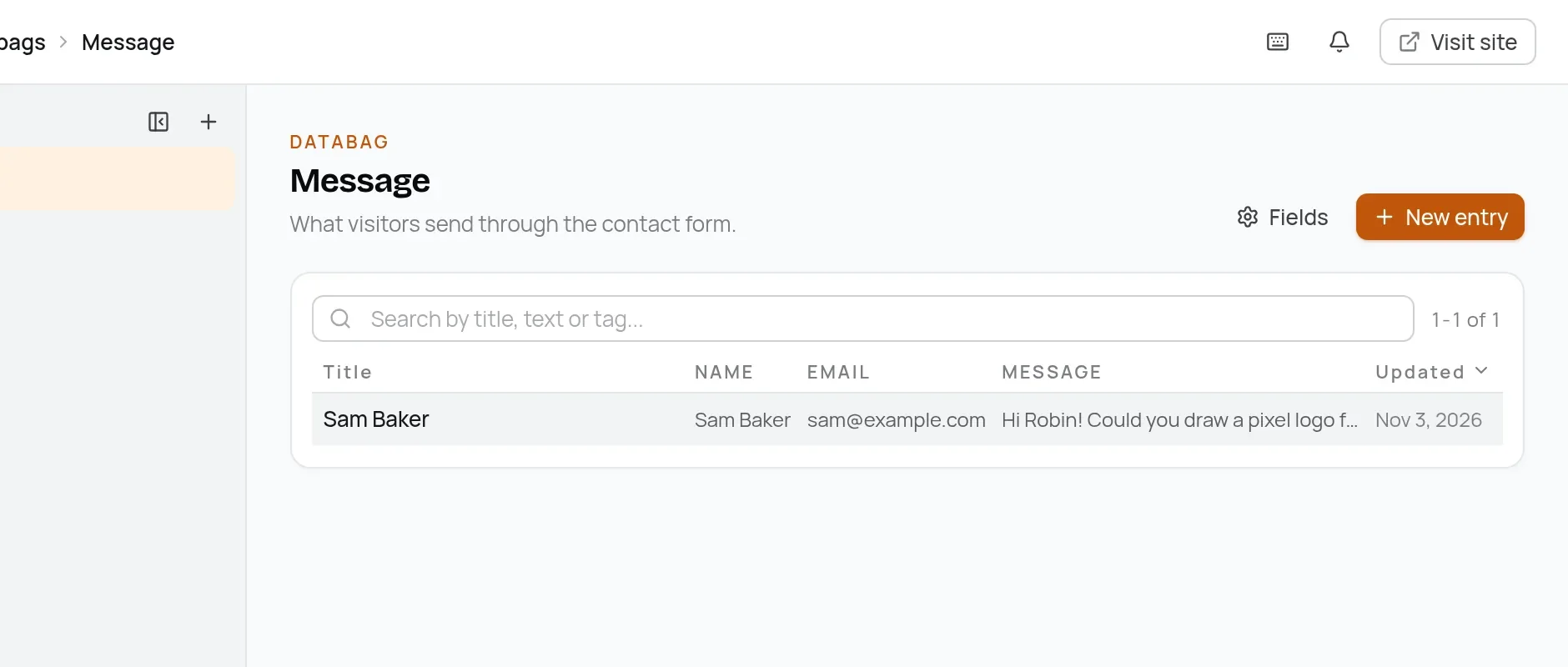
The message lands in the admin under Databags → Message. A databag is a list of entries that are not pages, such as form messages.
That is a complete portfolio, without a line of code. If that is all you need, you can jump to the last part and put it online. In the next part, you build a frontend of your own for the same content.