
A First-Person Controller in Babylon.js · Part 2 of 11 in the series
Part 2: Mouse Look With Pointer Lock
Capture the mouse with the Pointer Lock API, turn its movement into the angles of the view and put them on a camera of your own, without lag and without the view flipping over.
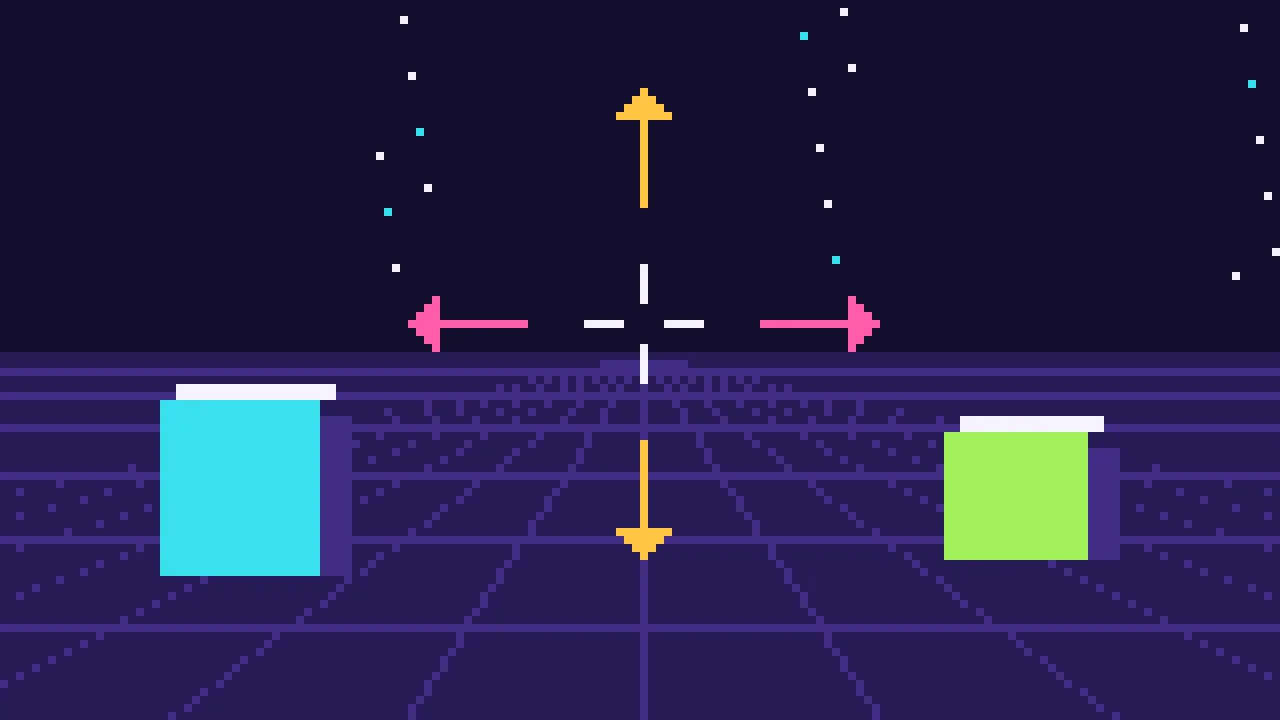
Quest objectives
- Capture the mouse with the Pointer Lock API
- Ask for raw mouse movement, and live without it where there is none
- Turn mouse movement into yaw and pitch
- Stop the pitch before the view flips over
- Put the angles on a Babylon.js camera of your own
In part 1 you flew around the course with Babylon.js's FreeCamera controls. They move the camera itself, which suits a viewer, but a game moves a body and the camera follows it. The mouse also stops at the edge of the screen. This part replaces those controls with mouse look of your own, the way a first-person game does it.
Settings
The numbers that decide how the game feels go into one file, so you can tune them in one place. For now that is the camera's:
export const CAMERA = {
  /** Radians per pixel of mouse movement. */
  sensitivity: 0.002,
  /** Looking straight up or down flips the view, so stop just short of it. */
  maxPitch: (89 * Math.PI) / 180,
  /** Vertical field of view: about 100 degrees across on a 16:9 screen. */
  fov: (70 * Math.PI) / 180,
};
The sensitivity is in radians per pixel of mouse movement: at 0.002, about 1,600 pixels turn the view around by half a circle.
The pitch stops at 89 degrees. At exactly 90 the view looks straight up or down, and which way is "forward" is no longer defined, so the picture can flip.
Babylon.js's field of view is vertical. 70 degrees up and down is about 100 degrees across on a 16:9 screen, a common value for first-person games.
Capturing the mouse
The Pointer Lock API hides the cursor and keeps it in place, and the page gets how far the mouse moved instead of where it is. It never stops at the edge of the screen. A page can only ask for it in answer to a click or a key press, and the player gets the mouse back with Esc.
Input gets a class of its own, which collects the mouse movement between two frames:
export class Input {
  /** True while the mouse is captured. The mouse only counts then. */
  locked = false;
  onLockChange: (locked: boolean) => void = () => {};

  private readonly canvas: HTMLCanvasElement;
  private mouseX = 0;
  private mouseY = 0;

  constructor(canvas: HTMLCanvasElement) {
    this.canvas = canvas;

    document.addEventListener('pointerlockchange', () => {
      this.locked = document.pointerLockElement === canvas;
      this.onLockChange(this.locked);
    });
    document.addEventListener('mousemove', (event) => {
      if (!this.locked) return;
      this.mouseX += event.movementX;
      this.mouseY += event.movementY;
    });
  }

  /** Captures the mouse. Browsers only allow it in answer to a click or a key press. */
  async lock(): Promise<void> {
    try {
      // Raw mouse movement, without the acceleration of the operating system.
      await this.canvas.requestPointerLock({ unadjustedMovement: true });
    } catch {
      // Not every platform has raw movement (Linux does not), so ask again without it.
      await this.canvas.requestPointerLock().catch(() => {});
    }
  }

  /** The mouse movement since the last call, in pixels. */
  takeMouse(): { x: number; y: number } {
    const movement = { x: this.mouseX, y: this.mouseY };
    this.mouseX = 0;
    this.mouseY = 0;
    return movement;
  }
}
Every mousemove event adds its movementX and movementY, and takeMouse() hands over the sum once per frame and starts again from zero. The movement only counts while the mouse is captured, and onLockChange tells the page when that changes.
unadjustedMovement: true asks for raw movement, without the acceleration the operating system puts on the cursor. With acceleration, the same distance on the desk turns the view more when the mouse moves fast, which makes aiming harder. Not every platform has raw movement: Chromium on Linux rejects the request with a NotSupportedError. That is why lock() asks again without it.
Yaw and pitch
The view is two angles. Yaw turns left and right around the vertical axis, pitch looks up and down. Moving the mouse right turns right and moving it towards you looks down, as in most games:
import type { Input } from './input.ts';
import { CAMERA } from './settings.ts';

/** Where the player looks: yaw turns around the vertical axis, pitch looks up and down. */
export class Look {
  yaw = 0;
  pitch = 0;

  update(input: Input): void {
    const mouse = input.takeMouse();
    this.yaw = (this.yaw + mouse.x * CAMERA.sensitivity) % (Math.PI * 2);
    this.pitch = Math.min(Math.max(this.pitch + mouse.y * CAMERA.sensitivity, -CAMERA.maxPitch), CAMERA.maxPitch);
  }
}
The yaw is kept within one turn, so it does not grow without end in a long session, and the pitch is clamped. Babylon.js uses a left-handed coordinate system: x points right, y up and z forward, and a yaw of 0 looks along +z.
The camera
The camera is a plain FreeCamera, without attachControl(), so nothing but your code moves it:
import { FreeCamera, Vector3, type Scene } from '@babylonjs/core/pure';
import type { Look } from './look.ts';
import { CAMERA } from './settings.ts';

/** The player's eyes: the camera, turned where they look. */
export class PlayerCamera {
  readonly camera: FreeCamera;

  constructor(scene: Scene) {
    this.camera = new FreeCamera('eyes', Vector3.Zero(), scene);
    // A near plane close to the eye lets the player hug a wall without seeing through it.
    this.camera.minZ = 0.05;
    this.camera.fov = CAMERA.fov;
  }

  update(look: Look): void {
    this.camera.rotation.set(look.pitch, look.yaw, 0);
  }
}
The camera's rotation is set from the angles every frame: x is the pitch, y the yaw and z the roll, which stays 0 until the last part. Babylon.js applies them as yaw, then pitch, then roll, so turning always happens around the world's vertical axis, however far up or down the player looks.
minZ is the near plane: anything closer to the camera than that is cut off. Babylon.js's default is 1 m, which would let the player see through a wall long before they touch it.
The page
The page gets a crosshair and an overlay that asks for the click:
<!doctype html>
<html lang="en">
  <head>
    <meta charset="UTF-8" />
    <meta name="viewport" content="width=device-width, initial-scale=1.0" />
    <title>First-person controller</title>
  </head>
  <body>
    <canvas id="game"></canvas>
    <div id="crosshair"></div>
    <div id="overlay">
      <strong>Click to look around</strong>
      <span>Move the mouse to look · Esc lets go</span>
    </div>
    <script type="module" src="/src/main.ts"></script>
  </body>
</html>
Add their styles to the end of src/style.css:
#crosshair {
  position: fixed;
  left: 50%;
  top: 50%;
  width: 4px;
  height: 4px;
  margin: -2px 0 0 -2px;
  border-radius: 50%;
  background: #f5f3ff;
  pointer-events: none;
}

#overlay {
  position: fixed;
  inset: 0;
  display: grid;
  place-content: center;
  gap: 8px;
  text-align: center;
  background: rgb(19 14 44 / 0.75);
  cursor: pointer;
}

#overlay.hidden {
  display: none;
}

#overlay strong {
  font-size: 28px;
}
Finally, src/main.ts swaps the fly camera for the new pieces. A click on the overlay captures the mouse, and the overlay hides while it is captured. Before every frame is drawn, the look takes the mouse movement and the camera turns:
import {
  Color3,
  Color4,
  DirectionalLight,
  Engine,
  HemisphericLight,
  RegisterStandardEngineExtensions,
  RegisterStandardMaterial,
  Scene,
  Vector3,
} from '@babylonjs/core/pure';
import { PlayerCamera } from './camera.ts';
import { Input } from './input.ts';
import { buildLevel } from './level.ts';
import { Look } from './look.ts';
import { enablePhysics } from './physics.ts';
import './style.css';

RegisterStandardEngineExtensions();
RegisterStandardMaterial();

const canvas = document.querySelector<HTMLCanvasElement>('#game')!;
const overlay = document.querySelector<HTMLElement>('#overlay')!;

const engine = new Engine(canvas, true, {}, true);
const scene = new Scene(engine);
scene.clearColor = Color4.FromHexString('#130e2cff');

// Light from the sky, tilted so that walls facing different ways get different shades,
// and a sun for contrast.
const sky = new HemisphericLight('sky', new Vector3(0.5, 1, 0), scene);
sky.intensity = 0.9;
sky.groundColor = Color3.FromHexString('#6a5cb0');
const sun = new DirectionalLight('sun', new Vector3(-0.5, -1, 0.7), scene);
sun.intensity = 0.4;

await enablePhysics(scene);
buildLevel(scene);

const input = new Input(canvas);
const look = new Look();
const view = new PlayerCamera(scene);
// At the start, at the eye height of a standing player. In the next part it follows one.
view.camera.position.set(0, 1.75, 0);

overlay.addEventListener('click', () => input.lock());
input.onLockChange = (locked) => overlay.classList.toggle('hidden', locked);

scene.onBeforeRenderObservable.add(() => {
  look.update(input);
  view.update(look);
});

engine.runRenderLoop(() => scene.render());
window.addEventListener('resize', () => engine.resize());
The camera stands where the player's eyes will be in the next part: 1.65 m above the feet, which start 10 cm above the floor.
Try it
Click into the page and move the mouse. The view turns without a cursor, all the way round, and stops just short of straight up and straight down. Esc gives the mouse back and brings the overlay back.
In the next part the camera gets a body: a capsule that walks on Babylon.js's character controller.